You publish an article, check Search Console and find it sitting under ‘Crawled – currently not indexed’. Google has seen the page, so why will it not show it? It is one of the most common and most frustrating statuses in the Page indexing report, and it is especially common on new blogs.
This guide explains what the status really means, why it happens and how to work through seven steps to fix it. It builds on our guide to setting up Google Search Console, which introduced the main indexing statuses.
What does ‘Crawled – currently not indexed’ mean?
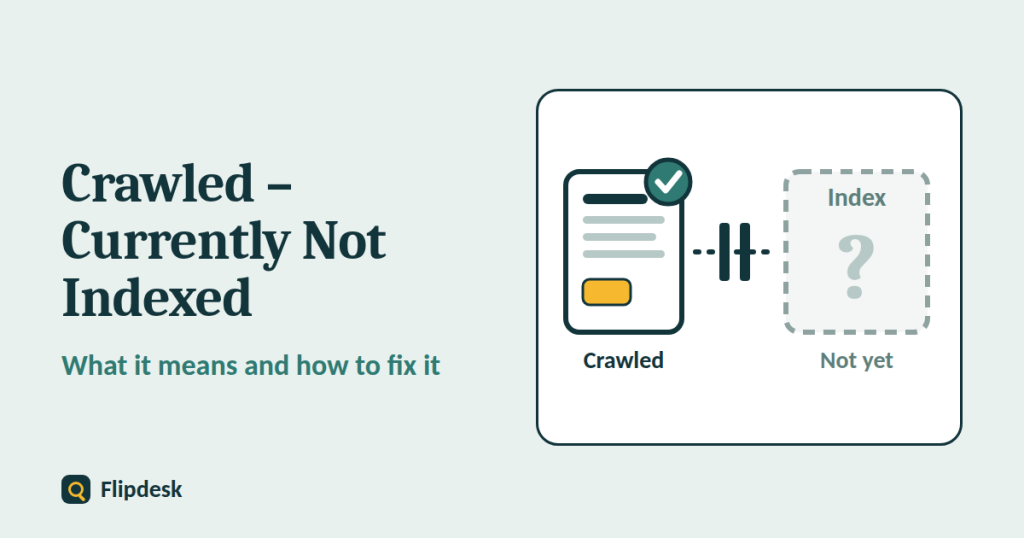
Google’s Page indexing report uses this status for pages that Googlebot has fetched but has not added to its index. Google says the page may or may not be indexed in the future, and that you do not need to keep resubmitting the URL for crawling. In other words, Google has looked at the page and decided, for now, not to include it.
Crawled vs discovered
Two similar statuses cause a lot of confusion. They mean different things.
| Crawled – currently not indexed | Discovered – currently not indexed | |
|---|---|---|
| What happened | Google fetched the page but did not add it to the index | Google knows the URL exists but has not fetched it yet |
| Last crawl date | Shown | Empty |
| Usual cause | Google is not convinced the page is worth indexing | Google postponed the crawl, often to avoid overloading the site, or gave the page low priority |
| Where to focus | Page quality, uniqueness and internal links | Internal links, site health and patience |
Is it an error?
No. It is not an error, and it is not automatically a penalty. A page can also move into this status after it was indexed, if Google reassesses it. Our guide on how to check whether a domain has a Google penalty explains how to rule out a real manual action.
Why it happens
The most common reasons are:
- Thin or generic content that adds little to what already exists
- Duplicate or near-duplicate pages, on your own site or on other sites
- Low-value pages, such as tag archives, filtered lists and parameter URLs
- Weak internal links, so the page looks unimportant or orphaned
- A new site that Google does not trust yet
- Technical problems, such as soft 404 pages, slow responses or content that does not render properly
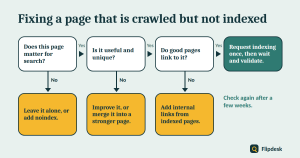
The fix at a glance
Use this quick flow to decide what to do with each page. The seven steps below explain every stage in detail.
Step 1: Find the affected pages
Open the Page indexing report
In Search Console, go to Indexing > Pages. Scroll to ‘Why pages aren’t indexed’ and click the row called ‘Crawled – currently not indexed’. Search Console shows a list of example URLs.
Group the pages by pattern
Look at the list and sort the URLs into groups. Are they blog posts, tag pages, category pages, filtered URLs or old pages? The pattern tells you how serious the problem is. A few tag pages are harmless, and a row of your best articles is a signal to act.
Check when it started
Look at the trend in the report. A sudden rise after a site change, a theme switch or a core update deserves a closer look. Our guide on how to recover from a Google core update shows how to compare dates properly.
Step 2: Decide which pages really matter
Pages you want in Google
These are your articles, your main category pages and your key service or about pages. Keep working on them through the next steps.
Pages you do not need in Google
Tag archives, internal search results, attachment pages, feeds, thank-you pages and parameter URLs usually do not need to be indexed. Leave them out, or add a noindex tag to those you want to keep for visitors. Do not block them in robots.txt if they carry a noindex tag, because Google must be able to crawl a page to see the tag. Our guide on how to remove thin content without losing traffic explains the rules.
Step 3: Inspect the page
Use the URL Inspection tool
Paste the page address into the search bar at the top of Search Console. Look at the Page indexing details: the last crawl date, how Google crawled it and which canonical URL Google chose. If Google picked a different canonical from the one you declared, the real problem is duplicate content, not ‘crawled but not indexed’.
Test the live URL
Click Test live URL to check that the page loads properly, that nothing is blocking Google and that no noindex tag is present. Keep in mind that the live test cannot judge quality, and Google’s own documentation says a page must be of high enough quality to warrant indexing.
Step 4: Make the page worth indexing
This is the step that fixes most cases. If Google has seen the page and passed on it, the page itself usually needs to offer more.
Match the search intent
Search the keyword the page targets and look at what ranks. Is your page the same type of page, and does it cover the topic as well? Our guide to keyword research for a new blog explains how to check search intent.
Add original value
- Add your own examples, screenshots, data and first-hand experience
- Answer the follow-up questions that readers ask next
- Update outdated information
- Cover the topic more completely than the pages that already exist
Merge or remove duplicates
If several of your pages say much the same thing, merge them into one strong page and 301 redirect the others. Do the same for pages that closely copy other sites.
Improve structure and clarity
Use clear headings, a short summary at the top and short paragraphs, as described in our on-page SEO checklist for beginners.
Avoid filler
Rewriting a page with filler, or publishing large numbers of pages that add nothing new, will not help. Google has a spam policy against producing large amounts of unoriginal content to manipulate rankings. One genuinely useful page is worth more than ten thin ones.
Step 5: Strengthen internal links
Internal links tell Google which pages matter. A page with few or no links pointing to it often looks unimportant.
- Link to the page from indexed, relevant articles and from your category or hub pages
- Use descriptive anchor text, not ‘click here’
- Add the page to a topic cluster, so it sits next to related articles
- Make sure the page is in your sitemap
- Never leave an article without at least one link from another page
Step 6: Check the technical basics
Technical problems are less common causes of this status, but they are quick to rule out.
- Canonical tags: each page should point to itself, unless it is a deliberate duplicate.
- Noindex and robots.txt: make sure neither is set by mistake.
- Soft 404 pages: pages that load but look empty or like an error can be treated as missing.
- Speed and server errors: open Settings > Crawl stats in Search Console to see response times and errors.
- Rendering: make sure the main content is visible without special scripts.
- Redirects: avoid chains, and point old URLs straight to the final address.
Step 7: Request indexing, validate and wait
Request indexing once
After you have made a meaningful improvement, inspect the URL and click Request indexing. Do this once. Google says that sending the same request repeatedly does not speed anything up, and there is a daily limit on requests.
Validate the fix
If Search Console offers a Validate fix button for the reason, use it. Google says validation can take up to about two weeks, and sometimes longer.
Give it time
Indexing can take days, weeks or longer, and Google never guarantees that a page will be indexed. Keep a change log of what you improved and when, and check back every few weeks. If a page is still not indexed after real improvements and a few months, consider merging it into a stronger page or removing it, as explained in our thin content guide.
When to stop worrying, and when to look deeper
Stop worrying when
- the affected pages are low-value pages you do not need in search
- the number of pages is small and stable
- the pages are new and have only just been published
Look deeper when
- a large share of your articles show this status
- pages that were indexed before have dropped into it
- you also have few or no indexed pages overall
In those cases, treat it as a site-wide quality or trust question. Check the Manual actions and Security issues reports, and read our guide on how to check whether a domain has a Google penalty. Then work through the core update recovery steps.
Common mistakes
- Clicking Request indexing on the same URL again and again
- Resubmitting the sitemap and expecting it to solve a quality problem
- Adding noindex and blocking the page in robots.txt at the same time
- Deleting everything that shows the status
- Rewriting pages with filler or mass-produced text
- Ignoring internal links
- Worrying about tag archives and filter URLs
- Changing URLs without 301 redirects
Crawled – currently not indexed checklist
Find and sort
- Open Indexing > Pages and click the status
- Group the affected URLs by pattern
- Decide which pages matter for search
Inspect
- Check the canonical and the last crawl date
- Test the live URL for noindex or blocks
Improve
- Match the search intent
- Add original examples and depth
- Merge or remove duplicates
- Add internal links from indexed pages
Technical
- Check canonicals, noindex, robots.txt and soft 404s
- Check crawl stats for slow responses or errors
Finish
- Request indexing once
- Validate the fix if offered
- Keep a change log and review every few weeks
Frequently asked questions
Is ‘Crawled – currently not indexed’ a penalty?
No. It is a status, not a penalty. Google has seen the page and has chosen not to index it for now. A real manual action appears in the Manual actions report instead.
How long does it take for the page to get indexed?
There is no fixed answer. It can take days, weeks or longer, and some pages are never indexed. Improving the page and its internal links gives it the best chance.
Should I delete pages with this status?
Not automatically. First decide whether the page matters. Improve the useful ones, merge the overlapping ones and remove only the pages that have no value.
Does requesting indexing work?
It asks Google to look at the page again, but it does not guarantee indexing. It is most useful once, after a real improvement.
Is this a crawl budget problem?
Usually not. Crawl budget matters mostly for very large sites. For a normal blog, the cause is far more often page quality, duplication or weak internal links.
What is the difference between crawled and discovered?
Crawled means Google fetched the page. Discovered means Google knows the URL but has not fetched it yet.
Can a page that was indexed move to this status?
Yes. If Google reassesses a page and decides it is not worth keeping, it can drop out of the index and appear under this status.
Does a noindex tag cause this status?
No. A page with a noindex tag appears under ‘Excluded by noindex tag’ instead.
Conclusion
Seeing ‘Crawled – currently not indexed’ is not a reason to panic. It is Google telling you it looked at the page and was not yet convinced. Find the affected pages, decide which ones matter, improve those that do, link to them from your best pages, rule out technical causes, request indexing once and give Google time.
If you have just started your blog, make this part of your routine: check the Page indexing report every week, improve weak pages early and keep publishing original, useful articles.