
Expired domains are popular with people who build and flip sites, because an older domain may come with links and some history. But the past of a domain is the one thing you cannot see from its name, and a bad history can cost you far more than the registration fee.
This guide shows you how to check an expired domain’s history before you buy it, in seven steps, using free and low-cost tools. It also explains what the findings mean and when to walk away. It is educational and is not legal advice.
Why an expired domain’s history matters
The upside and the risk
The upside is that a domain with a real history may have genuine links, an older registration date and a recognisable name. The risks are just as real: the site may have been a spam farm, it may have been removed from Google’s results, or its links may be low-quality.
Google also has a spam policy on expired domain abuse. It describes the practice of buying an expired domain and using it mainly to manipulate search rankings by publishing content that offers users little or no value. Building a genuinely helpful site is a different matter, but the safest assumption is that the old reputation of a domain may not carry over, so plan to earn trust with good content.
What history can and cannot tell you
What the checks in this guide can show you:
- What the site was about, and for how long
- Whether the topic changed suddenly
- How other sites linked to it
- Whether it is indexed in Google today
- Whether it carries obvious spam or security flags
What they cannot show you:
- Whether a manual action exists. Only the verified owner of a site can see that, so read our guide on how to check whether a domain has a Google penalty.
- Its true traffic and revenue. Tool estimates are only estimates.
Step 1: Check the domain’s age and registration history
Look up the registration details
Use a WHOIS or RDAP lookup, or the registry’s own tool (for a .co.uk domain, that is Nominet), to see the creation date, the expiry date and the registrar. Many records hide the owner’s details, but the dates are usually visible.
Remember that age can reset
If a domain fully expired and was deleted before someone registered it again, its creation date may start from the new registration. A domain that looks 15 years old on the Wayback Machine may show a much newer registration date. That is not necessarily bad, but it tells you the domain has changed hands.
Look for gaps
Note the time between the expiry and the new registration. A long gap means the site was dead for a while. Dates that change repeatedly suggest the domain has been traded around.
Step 2: Review the history in the Wayback Machine
The Wayback Machine is a free archive that saves snapshots of web pages over time. It is the most useful single tool for this job.
Open the calendar view
Type the domain into the Wayback Machine search box. You land on a timeline of years, with a calendar where the dates that have saved snapshots are marked. The more snapshots a site has, the more evidence you have.
Walk through the timeline
Open a snapshot from the first year, then step forward through the years. Look at the homepage and at a few inner pages each time. The Wayback Machine also has a Changes tab, which compares two snapshots side by side, a Site Map view that shows the structure of archived pages, and a URLs tab for finding deeper pages.
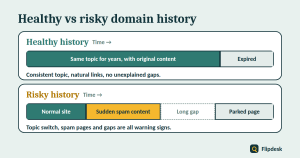
What a healthy history looks like
- The same topic over many years, or a gradual and logical change
- Original, readable content written for people
- A normal site structure, such as a blog, an about page and a contact page
- Regular snapshots with no unexplained long gaps
Red flags in the archive
- A sudden switch to an unrelated topic, especially casino, pharmacy, adult or loan content
- Pages that look auto-generated, badly translated or stuffed with keywords
- Hundreds of near-identical pages
- Hidden text or lists of outbound links
- Long dark periods followed by a completely different site
- A parked page, with ads and no real content, for years
When the archive is empty or patchy
A domain with few or no snapshots may simply have been a small site, or the owner may have blocked archiving. It is not a red flag on its own, but it gives you less evidence, so lean harder on the other steps. You can also try archive.today as a second source.
Step 3: Search Google for the domain
Run a site search
Search for site:domain.com in Google. The results are approximate, but they show whether Google has indexed pages from the domain. Look at what appears. Pages that match the old topic are a good sign. Unrelated pharmacy or casino pages are a warning.
A domain that was active for years but shows no indexed pages at all may have been removed from the index. It may also simply be that the site expired and Google dropped it, which is why this check is only a clue.
Search the domain and brand name
Search for the domain name and the brand name on their own. Look for mentions, reviews and complaints, and for forum threads about scams or hacked sites.
Check for security warnings
Use Google’s Safe Browsing site status tool and a scanner such as VirusTotal to check whether the domain has been flagged for malware or phishing. A history of security problems is a serious concern.
Step 4: Analyse the backlinks
Use a backlink tool
Tools such as Ahrefs, Semrush, Majestic and Moz can show the links that point to a domain. Each tool has its own index, so the numbers differ. If you can, compare two of them. Some tools offer a limited free backlink checker.
What to check
- Referring domains: the number of different sites linking to the domain matters more than the total number of links.
- Relevance: links from sites about the same topic are more useful than random ones.
- Anchor text: the words used in the links.
- Link spikes: a sudden jump in links over a short period.
- Link sources: editorial links, as opposed to directories, comment spam, forum spam or networks of sites.
- Lost links: whether the good links are still there.
Good signs
- Links from real, relevant websites
- Natural, varied anchor text, often the brand name or the plain URL
- Steady growth over time
Bad signs
- Anchor text full of casino, pharmacy or adult keywords
- Thousands of links from unrelated, low-quality sites
- Links in foreign languages that have nothing to do with the old topic
- A large number of links created in a very short time
Be careful with the scores
Authority scores such as Domain Rating or Domain Authority are specific to each tool, and Google does not use them. Spam or toxicity scores are only hints. No tool can say exactly how Google treats a link.
Step 5: Look for spam and penalty signals
Put together what you have found so far:
- Spam content in the archive, such as doorway pages or auto-generated text
- Indexing problems, such as no pages in Google despite a long history
- Security flags from Safe Browsing or a malware scanner
- Unnatural backlinks, such as a spike of spammy links
One warning sign may have an innocent explanation. Several together are a strong reason to walk away. Remember that the only definitive check is Search Console. Once you own the domain, verify it and open the Manual actions and Security issues reports before you invest in content.
Step 6: Check the traffic and keyword history
SEO tools can show an estimated history of organic traffic and the keywords a domain ranked for. Use it to check three things.
- Cliffs: a steep fall in traffic, especially one that lines up with a Google update. Our guide on how to recover from a Google core update shows how to read these.
- Topic match: whether the keywords matched the content you saw in the archive.
- Keyword quality: whether the domain ranked for real topics, or for spam terms.
These figures are estimates, so treat them as a rough picture and not as exact data.
Step 7: Check trademark and legal risks
Check for brand conflicts
Search the domain name and brand in the trademark databases of the countries you care about, such as those run by the UK Intellectual Property Office, the USPTO or the WIPO Global Brand Database. A domain that copies or closely imitates a well-known brand can lead to a dispute, and a domain can be taken from you whatever Google thinks of it. Dispute processes exist for most domain types. If in doubt, ask a lawyer.
Do not reuse the old content
It is tempting to restore a site’s old pages from the archive. Do not. That content is still protected by copyright, and it still belongs to its previous owner. It can also be a duplicate of other pages on the web. Write original content instead.
Should you buy it? A quick decision table
| Check | Fine | Concern | Walk away |
|---|---|---|---|
| Registration history | Stable dates | Several changes of hands | Repeated drops and re-registrations |
| Wayback Machine | Consistent topic | Few snapshots or gaps | Spam, a sudden topic switch or hacked content |
| Google presence | Indexed, with relevant pages | Nothing indexed | Spam pages indexed |
| Backlinks | Relevant and natural | Few links | Spammy anchors or link spikes |
| Traffic history | Stable or growing | Unexplained dips | Cliffs with spam signs |
| Legal | No brand conflicts | Similar to a known brand | Imitates a famous brand |
What to do after you buy
- Verify the domain in Search Console straight away, then check the Manual actions and Security issues reports
- Set up hosting, a clean site and backups
- Publish original, genuinely useful content that suits the domain
- Do not restore old content, and do not redirect the domain to an unrelated site
- Do not expect the old rankings to return. Plan to earn them
- Keep a change log, and follow our guide to setting up Google Search Console to monitor indexing
Expired domain history checklist
Registration
- Creation, expiry and registrar details checked
- Gaps and changes of ownership noted
Archive and Google
- Wayback Machine timeline reviewed, including the Changes and Site Map views
- site: search and brand search done
- Safe Browsing and malware checks done
Links and traffic
- Backlinks checked in at least one tool, ideally two
- Anchor text, spikes and link sources reviewed
- Traffic and keyword history checked for cliffs
Legal
- Trademark databases searched
- No plan to reuse old content
After buying
- Verified in Search Console
- Manual actions and Security issues reports opened
Common mistakes when checking expired domains
- Buying because of a high authority score alone
- Skipping the Wayback Machine
- Checking only one backlink tool
- Ignoring a sudden change of topic in the archive
- Assuming that no penalty shows in a tool means no penalty exists
- Restoring old content from the archive
- Redirecting the domain to a different site to pass on its old links
- Not checking the trademark
Frequently asked questions
Can an expired domain have a Google penalty?
It is possible. Manual actions are tied to the site, so one can still be in place when the domain changes hands. You cannot see it before you own the domain, which is why you should verify the domain in Search Console right after buying it.
Does an expired domain keep its old authority?
Not necessarily. Google has not said that a domain’s history is wiped, but it has also made clear that it does not want old domains used to manipulate rankings. Plan to earn trust with new, helpful content.
Is the Wayback Machine enough to check a domain?
No. It shows what the site looked like, but it does not show backlinks, traffic or penalties. Use it together with the other checks.
How far back should I check?
As far as the archive goes. Start at the first snapshot and move forward, so you see every change of topic.
What if the domain has no snapshots?
Then you have less evidence. It may just have been a small site, but rely more on the backlink, Google and security checks, and be extra careful.
Are expired domains worth buying?
Sometimes. Many people build good sites on them, but there are no shortcuts, and a bad history can be expensive. Buy only a domain you would be happy to build on from scratch.
Can I copy old content from the archive?
No. It is protected by copyright and belongs to its previous owner. Write your own original content.
Conclusion
Checking an expired domain’s history is about finding the problems before you pay for them. Look at the registration dates, walk through the Wayback Machine timeline, search Google, study the backlinks, look for spam and penalty signals, check the traffic history and make sure there is no trademark conflict.
If the checks come out clean, you still need to verify the domain in Search Console the moment you own it. If you want to know what a domain is worth once you have checked it, read our guide on how to value a website before buying it.

