A sudden traffic drop, a site that will not appear in Google, or a domain you are thinking of buying: in all three cases the same question comes up. Does this domain have a Google penalty?
The honest answer depends on whether you own the domain. If you do, Search Console can tell you for certain whether a manual action exists. If you do not, nothing can tell you for certain, but a set of careful checks can show you how risky the domain looks. This guide covers both situations step by step.
What is a Google penalty?
Google does not use the word ‘penalty’ much in its own documentation, but site owners use it for any situation where Google deliberately lowers or removes a site from its results. There are two very different kinds.
Manual actions vs algorithmic demotions
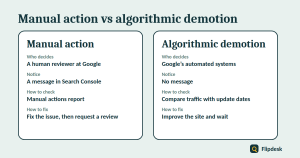
| Manual action | Algorithmic demotion | |
|---|---|---|
| Who decides | A human reviewer at Google | Google’s automated ranking systems |
| Notification | A message in Search Console | No message |
| How to check | Manual actions report in Search Console | Compare your traffic with update dates |
| How to fix | Fix the problem, then request a review | Improve the site and wait for systems to reassess |
A manual action happens when a reviewer decides that pages on a site break Google’s spam policies. Sites that break the policies may rank lower or may not appear at all.
Is it really a penalty?
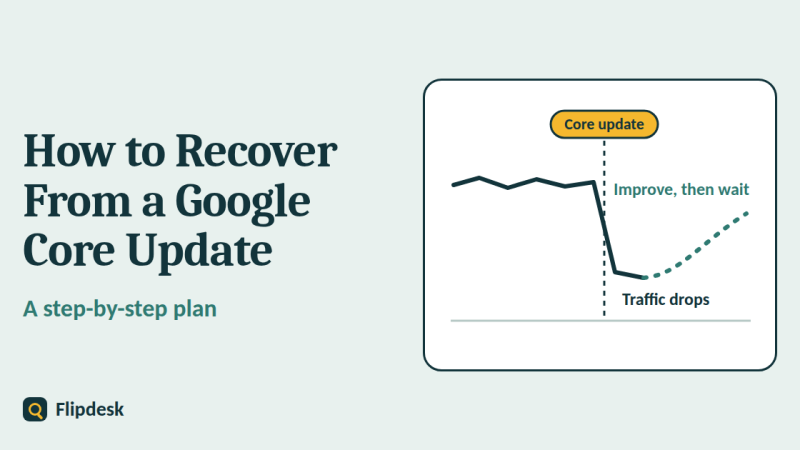
Many drops that feel like a penalty are not. A core update, a change in how people search, a tracking error or an indexing problem can all look the same in your charts. Before you assume the worst, read our guide on how to recover from a Google core update, which explains how to tell the difference.
Part 1: Check your own site
If you own the site and have verified it in Search Console, these checks give you the best answers. If you have not set it up yet, follow our guide to setting up Google Search Console first.
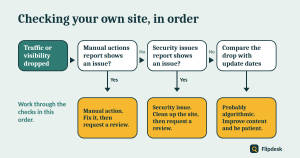
Step 1: Open the Manual actions report
Where to find it
In Search Console, go to Security & Manual Actions > Manual actions.
What the result means
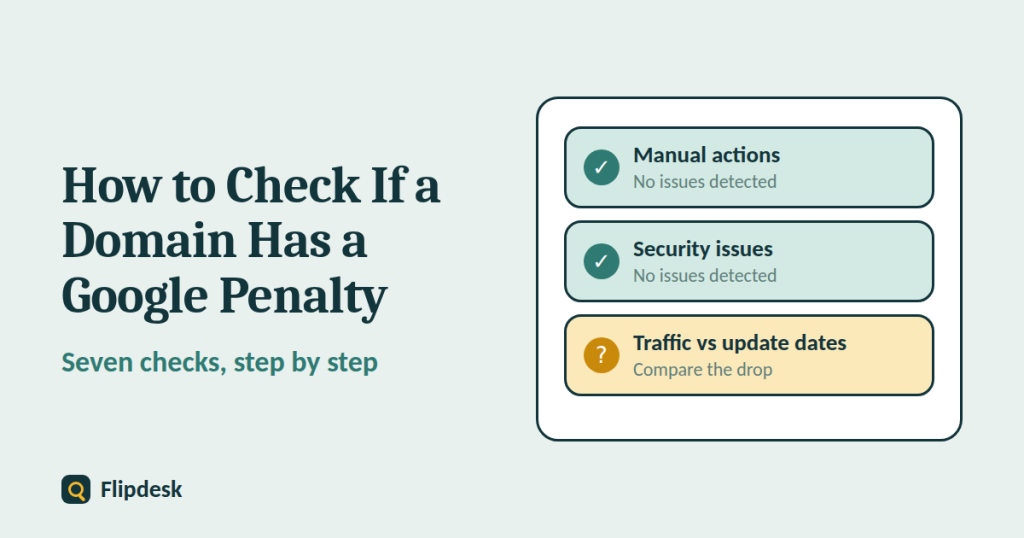
If the page says ‘No issues detected’, your site has no manual action. If an action is listed, the report shows the type of problem and the affected pages, so you know where to start fixing.
Common manual action types include pure spam, thin content with little or no added value, unnatural links, user-generated spam and abuse of Google’s newer spam policies.
Step 2: Check the Security issues report
Open Security & Manual Actions > Security issues. This is a separate report that lists hacked content, malware and social engineering problems. A hacked site can lose its visibility even without a manual action, so always check both reports.
Step 3: Read your Search Console messages
Google also sends notifications to the Search Console message center. Open it and look for anything about spam, security or manual actions, including older messages you may have missed.
Step 4: Check whether your pages are indexed
Run a site search
Type site:yourdomain.com into Google. The results are only an approximate guide, but they quickly show whether Google knows about your pages. If you see unrelated content you did not publish, such as pharmacy or casino pages, your site may have been hacked.
Search your brand name
Search for your site’s name. A site that normally appears for its own name but suddenly does not is a warning sign.
Use the URL Inspection tool
Inspect your homepage and a few key pages. If they are ‘not on Google’, read the reason. It is often something simple, such as a noindex tag or a robots.txt block, rather than a penalty. Our Search Console guide explains these statuses.
Keep in mind that a brand-new site may show nothing yet. That is normal and is not a penalty.
Step 5: Compare your traffic drop with update dates
If the Manual actions report is clear and your site is secure, but traffic fell sharply, an algorithmic change is the likely cause. Open the Search Status Dashboard, note the dates of recent ranking updates, and compare them with the drop in your Performance report. If they line up, follow the recovery steps in our core update guide.
Part 2: Check a domain you do not own
This is the situation when you are buying an expired domain or a website. There is one important limit to understand first: manual actions are shown only to verified owners in Search Console, so you cannot look them up for someone else’s domain. The checks below reduce your risk, but none of them is proof.
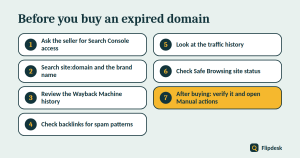
Check 1: Ask the seller for Search Console access
The best check is the direct one. Ask the seller to add you as a user, or to share their screen live while they open the Manual actions and Security issues reports. Do not rely on screenshots alone, because they can be edited.
Check 2: Search for the domain in Google
Search site:domain.com, then search the domain name and the brand name on their own. A domain with a long history that has no indexed pages and no brand results may have been removed from the index, although it can also simply mean that it expired and has been forgotten.
Check 3: Review the history in the Wayback Machine
The Internet Archive’s Wayback Machine shows how the site looked over the years.
What to look for
- What the site was about, and for how long
- Whether the content stayed consistent, or suddenly changed topic
- Long gaps with no content at all
- Whether the old pages were useful or thin and repetitive
Red flags
- A switch from a normal topic to casino, pharmacy, adult or other spam content
- Pages that look auto-generated, translated badly or stuffed with keywords
- Signs of a hack, such as hidden links or unrelated pages
Check 4: Look for spam patterns in the backlinks
Use a backlink tool such as Ahrefs, Semrush or Majestic, and look at the links pointing to the domain. Be wary of:
- anchor text full of casino, pharmacy or adult keywords
- huge spikes in links over a short period
- many links from unrelated, low-quality sites in other languages
- links that look like they come from a network of sites built to pass authority
Treat any ‘spam score’ or ‘toxicity’ number as a hint. Tools cannot know for sure how Google treats a given link.
Check 5: Study the traffic history
If the seller can show analytics, look for sudden cliffs. If not, a tool’s traffic estimate can show the general shape of the history, although the numbers are only estimates. A steep fall that lines up with a known update date suggests the site was demoted at some point, and you should ask why.
Check 6: Check the domain for security flags
Use Google’s Safe Browsing site status tool and a service such as VirusTotal to see whether the domain has been flagged for malware or phishing. A history of security problems makes a domain much riskier.
Check 7: After you buy, verify it and open Manual actions
Once the domain is yours, add it to Search Console and verify ownership before you spend time and money on content. Then open the Manual actions and Security issues reports right away. Manual actions are tied to the site, so one can remain in place after the domain changes hands. This is the only definitive check, which is why it should come early in your plan.
A note on expired domain abuse
Google has a spam policy against expired domain abuse. It describes the practice of buying an expired domain and repurposing it mainly to manipulate search rankings by publishing content that offers users little or no value. Google also says this is not something people do by accident.
The key point is purpose. Building a genuinely helpful site is different from using an old domain’s reputation to push thin pages. Even so, the safest assumption is that a domain’s past authority may not carry over, so plan to earn trust with good content rather than relying on the history.
It is also worth checking whether a domain closely imitates a well-known brand. That can cause legal or reputation problems whatever Google thinks of it.
What to do if you find a manual action
Read the message and the type
The report names the problem and often lists example URLs. Read it carefully, and read the matching section of Google’s spam policies.
Fix the whole problem
Fix the issue across the entire site, not only the examples Google shows. If the action is for unnatural links, remove or clean up the links you can. If it is for thin or spammy content, remove it or improve it. If the site was hacked, clean it and close the security hole.
Request a review
Once you are sure the problem is gone, click Request review in the Manual actions report. Explain what was wrong, what you did to fix it and where you did it. A review can take several days or longer, and Google tells you the result through Search Console. If the action is lifted, you will see it cleared in the report.
Do not repeat the violation
A site that gets a second action for the same problem can find it much harder to get lifted. Make sure the cause is truly removed.
What to do if there is no manual action
If the Manual actions report is clear and traffic is still down, the cause is probably algorithmic, or something simpler such as indexing or tracking. Follow the checks above, then work through our core update recovery guide.
Google penalty check checklist
For your own site
- Open the Manual actions report
- Open the Security issues report
- Read your Search Console messages
- Run a site search and a brand search
- Inspect your key pages with the URL Inspection tool
- Compare any traffic drop with update dates
For a domain you want to buy
- Ask for Search Console access or a live screen share
- Search the domain and the brand name in Google
- Review the Wayback Machine history
- Check the backlinks for spam patterns
- Study the traffic history
- Check Safe Browsing and security flags
- After buying, verify the domain and open the Manual actions report
Common mistakes when checking for penalties
- Trusting a free ‘penalty checker’ tool as proof. These tools usually compare traffic with update dates and cannot see manual actions.
- Mistaking a slow start on a new site for a penalty
- Buying a domain because of its authority score alone
- Ignoring the Wayback Machine history
- Using the disavow tool blindly. It is an advanced tool, meant for specific situations such as a manual action for unnatural links.
- Fixing the examples in a manual action message but leaving the rest of the problem in place
Frequently asked questions
Can I check someone else’s site for a manual action?
No. Manual actions are shown only to verified owners in Search Console. For a domain you do not own, you can only run indirect checks.
Do free Google penalty checker tools work?
They can give a hint, but they cannot see manual actions. Most of them compare a site’s traffic estimate with known update dates, which is a guess rather than proof.
How do I know if my site is deindexed?
Search for your site with site:yourdomain.com, inspect your homepage with the URL Inspection tool and open the Manual actions report. If pages are missing, read the reason shown before you assume it is a penalty.
Is a slow start on a new site a penalty?
Usually not. New sites need time to be crawled, indexed and trusted. Check the Page indexing report before you worry.
How long does a manual action review take?
It can take several days or longer, and complex cases such as link problems can take more time.
Can I inherit a penalty when I buy a domain?
It is possible. Manual actions are tied to the site, so one can remain after ownership changes. That is why you should verify the domain in Search Console and check the Manual actions report as soon as you buy it.
Is a penalty the same as a core update drop?
No. A core update is a broad change to ranking systems, and it does not target specific sites. A manual action is a decision by a human reviewer about a specific site.
Conclusion
Checking for a Google penalty is straightforward when you own the site: open the Manual actions and Security issues reports, then compare any drop with update dates. When you do not own it, no single check gives you certainty, so use several, treat the results as risk signals and verify the domain in Search Console as soon as you take ownership.
If you find a manual action, fix the whole problem before you request a review. If you find none, the answer may lie in a core update, and our recovery guide will show you how to work through it.